Inspect Maileon Webhook Calls
A private, encrypted endpoint that captures and displays your Maileon webhook payloads — no account required.
Generate your vault
Click "Generate new vault". A random, unique vault ID is created — this ID is your access key.
Save your vault ID
Copy and store your vault ID. You will need it to reopen this vault in a new browser session.
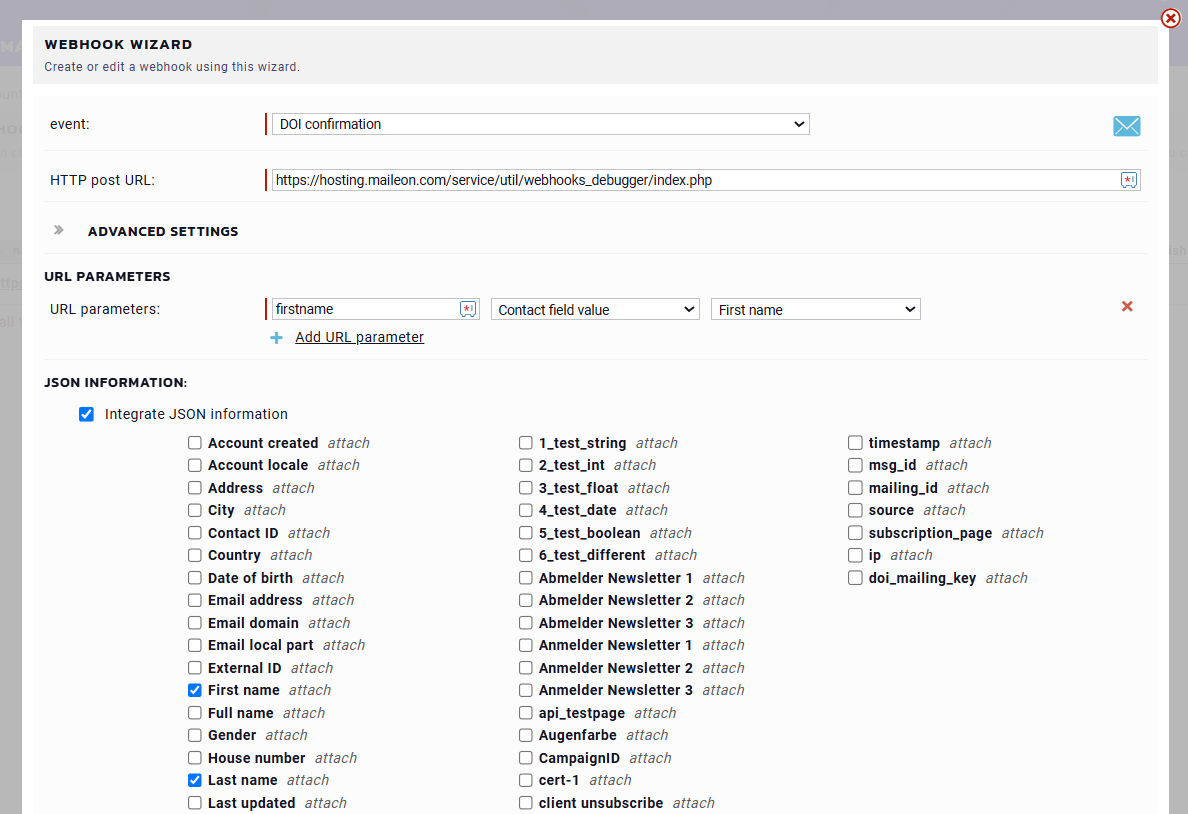
Configure Maileon
In your Maileon account go to Settings → Webhooks and paste the generated webhook URL.
Inspect the data
Trigger a test event in Maileon and return here to view the captured payload with full headers and body.
Maileon webhook configuration
Configure the webhook in your Maileon account as shown below.
Get started
Generate a new vault or reopen an existing one using its vault ID.
New vault
Creates a unique random vault and webhook URL.
Reopen existing vault
Paste the vault ID you saved when you first created it.